Workflows
A workflow groups the tasks that belong to one job. This page explains how to declare a workflow and its options, where to put the task files, and how to share code between two workflows.
A workflow is a directory
The file workflow.py marks a directory as a workflow. The file holds one Workflow subclass.
The name of the workflow defaults to the kebab-cased class name. The class Etl gives the name etl, and the
class OrdersAnalytics gives the name orders-analytics. This name is the value of the --workflow option.
Two attributes change the names:
class MyLongWorkflowName(Workflow):
    name = "short"              # The name that --workflow takes.
    display_name = "Short 🎯"   # The label that the UI shows.
The directory name is not the workflow name
Winslow reads the name from the class, and not from the directory. A directory named anything can hold
the workflow short. Keep the two the same, because a reader expects it.
The workflow config
A workflow declares its runtime options as ConfigOption attributes:
class Report(Workflow):
    region = ConfigOption(required=True, choices=["eu", "us"], help_text="The region to report on.")
    limit = ConfigOption(type=int, default=10, help_text="The maximum row count.")
    dry_run = ConfigOption(action="store_true", default=False, help_text="Report without a write.")
Winslow turns each option into a command line argument, and into a field on the workflow form. The parsed
values form the workflow config of the run. A task reads a value from self.workflow_config:
The common arguments:
| The argument | The effect |
|---|---|
type |
Converts the raw string, for example type=int. |
default |
The value when the command omits the option. |
required |
Winslow stops before the run when the value is missing. |
choices |
The list of legal values. Another value is an error. |
multiselect |
With choices: the option takes more than one value, for example --regions eu us. |
action="store_true" |
Declares a flag that takes no value. |
help_text |
The description on --help and on the form. |
identifier |
Puts the value in the instance label. See below. |
A required option with a default can be omitted
This diverges from plain argparse, which demands a required option even when a default exists. In Winslow the default supplies the value, so the command line can omit the option. A cleared form field is different: it has no value, so the form still demands one.
The form field for each option
The arguments of an option select its field on the workflow form:
| The declaration | The field |
|---|---|
action="store_true" |
A switch. |
choices |
A radio set. More than ten choices give a list with a search. |
choices with multiselect=True |
A selection list, for more than one value. |
| Any other option | A text input. type=int and type=float make the input numeric. |
Each field shows its help_text below the input. Declare show_on_ui=False to keep an option off the form.
The identifier options
The identifier argument makes two instances of one workflow readable. The UI shows the values of the
identifier options next to each instance, for example region=eu and region=us. An identifier implies
required, because an option without a value distinguishes nothing.
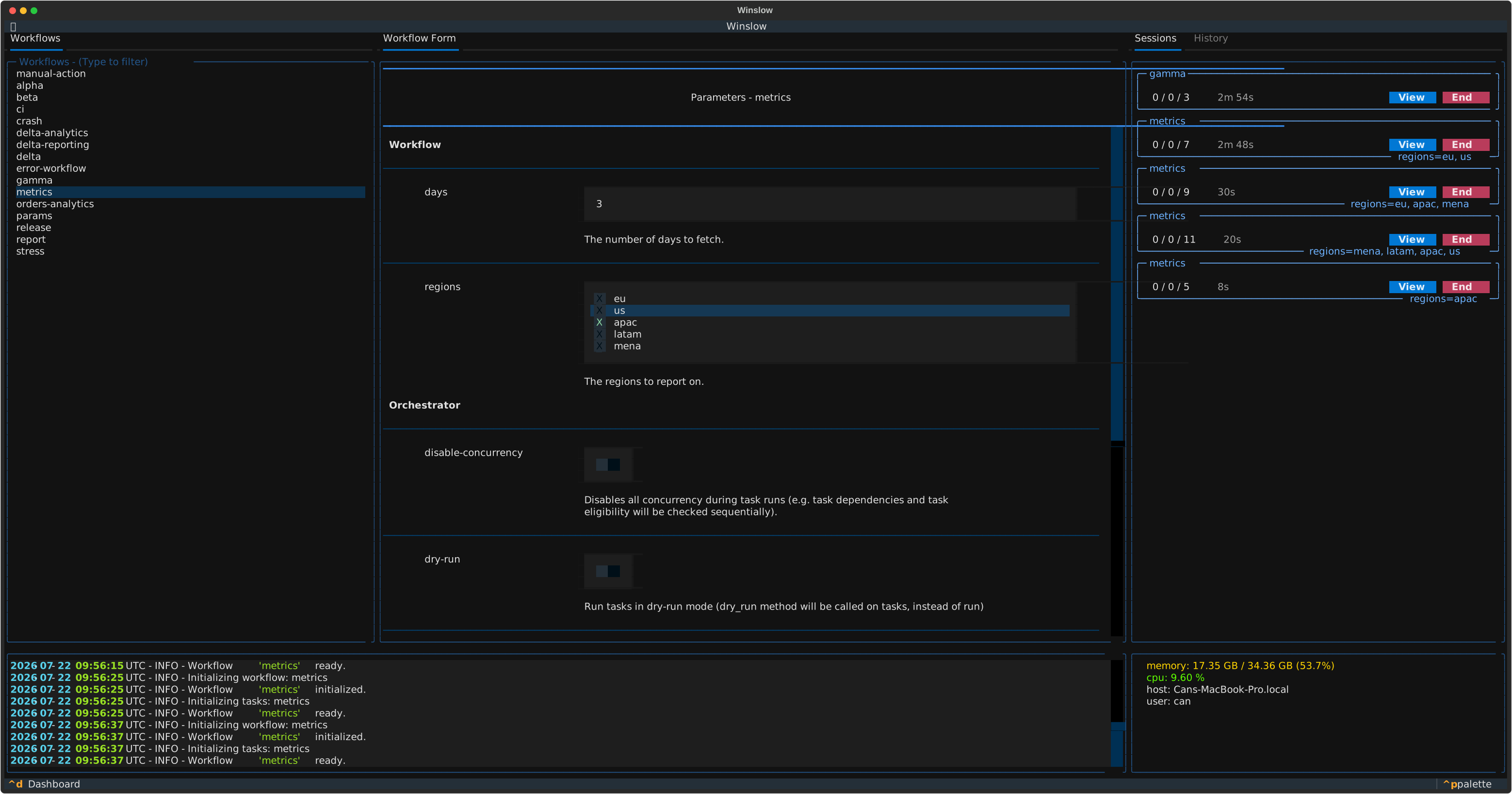
See Getting started for a runnable example with the command lines.
How Winslow finds a workflow
Winslow searches the current directory and every subdirectory below it. Each directory that holds a
workflow.py file is a workflow. The depth does not matter:
project/
├── workflows/
│   └── etl/
│       └── workflow.py      # The workflow "etl".
└── teams/
    └── data/
        └── nightly/
            └── workflow.py  # The workflow "nightly".
Winslow ignores a directory whose name starts with a full stop or an underscore. A workflow in .venv/ or in
_scratch/ thus stays invisible.
Where the task files go
Winslow imports every .py file in the workflow directory, and in the subdirectories of that directory. The
file workflow.py therefore does not import the task files. Declare a Task subclass in any file, and
Winslow finds it.
Three layouts are common. Each one works the same way:
etl/                    alpha/                   orders/
├── workflow.py         ├── workflow.py          ├── workflow.py
└── tasks.py            └── alpha_tasks.py       └── tasks/
                                                     ├── extract.py
                                                     ├── load.py
                                                     └── marts.py
Start with one tasks.py file. Move to a tasks/ package when one file becomes hard to read.
Imports inside one workflow
A task file can import another file of the same workflow with a relative import:
Winslow loads each workflow directory as a package with its own scope. Two workflows that both hold a
tasks/extract.py file do not collide.
Share code between workflows
A relative import does not reach outside the workflow directory. Put the shared code in a package at the project root, and import it with an absolute import:
project/
├── shared/
│   ├── __init__.py
│   └── base.py          # Holds BaseWorkflow.
└── workflows/
    ├── etl/
    │   └── workflow.py  # from shared.base import BaseWorkflow
    └── report/
        └── workflow.py  # from shared.base import BaseWorkflow
Winslow adds the project root to sys.path when it loads the workflows. The absolute import then resolves.
A relative import cannot cross two workflows
The statement from ..other.workflow import X fails with "attempted relative import beyond top-level
package". Each workflow directory is the root of its own import scope. Use the project root package.
A workflow resolves its own top-level names first. A workflow that holds a tasks.py file always gets that
file, even when the project root holds a tasks.py file too.
Share a base class
A base class that is not a concrete part of a workflow declares abstract in a Meta class. This applies
to a Workflow, to a Task and to a cache class:
from winslow import Workflow


class BaseWorkflow(Workflow):
    display_name = "Shared base"

    class Meta:
        abstract = True
Winslow does not register an abstract class. A subclass of it is concrete, and Winslow registers the subclass:
The abstract flag does not pass to a subclass
Winslow reads the Meta class of one class, and does not walk the class hierarchy. A subclass that
declares no Meta of its own is always concrete. A subclass thus needs no abstract = False override.
The examples/ci workflow uses this pattern. The abstract MarkerTask holds the run method and the check
method, and the six concrete tasks declare only their group and their dependencies.
Nested workflows
A workflow directory can hold another workflow directory. Each workflow.py file still gives one workflow, so
the parent and the child both appear in the list. The parent also collects the tasks of the child.
examples/nested/
├── workflow.py           # The workflow "nested": ingest, transform.
├── analytics/
│   └── workflow.py       # The workflow "nested-analytics": aggregate, visualize.
└── reporting/
    └── workflow.py       # The workflow "nested-reporting": summarize.
This layout gives three workflows. Run the child to do one part of the job:
winslow show --initialize --workflow nested-analytics   # aggregate, visualize
winslow show --initialize --workflow nested-reporting   # summarize
Run the parent to do the whole job. The parent holds its own two tasks, and the three tasks of the two children:
The parent runs the tasks of every workflow below it
The collection is recursive, and it reaches every level. A task belongs to the parent as soon as the task file sits anywhere below the parent directory. The simplest way to keep a task out of the parent is to move the workflow out of the parent directory.
Use this layout when one large job splits into parts that are also useful on their own.
The directory structure sets which tasks a workflow collects, and nothing else. The collected tasks form one flat graph. A dependency between any two of them behaves in the same way, whichever directory each task file sits in.